
This post is also available in: cs
This post accompanies a mini-seminar on using AI agents. It is here so that you can look up the links and come back to the topics covered in the seminar.
Goal
- Show colleagues how to use an AI agent and let it do the work for them.
- I will not show you what to do or how to do it. I will show you how I do it and what I find interesting and useful. I do it in the belief that it will be useful and/or inspiring for you too.
- I use Claude Code. Other agents (OpenAI Codex, Gemini CLI, GitHub Copilot agent, …) work very similarly, so most things apply to them as well.
Chatbot × agent
A classic chatbot (the web interface of ChatGPT, Claude, Gemini) only answers with text. You have to copy the result yourself, save it, run it and then paste the outcome back into the chat.
An AI agent gets tools: it can read and write files, run commands, download from the internet, work with e-mail or a calendar. It works in a loop: it plans a step → carries it out → looks at the result → continues or fixes the mistake. You set the goal, the agent gets it done.
A note on Linux
I use Linux and my workflow is built on it. I did not choose Linux because it is free, but because I like a shell-first workflow, it does not put obstacles in my way and I can bend and customize it any way I want. AI helps me a lot with that, and thanks to it I have become much more efficient in this area.
Linux comes with plenty of tools that an AI agent knows and can use very
efficiently (grep, find, sed, ffmpeg, imagemagick, pandoc, git, …).
I do not know how it is elsewhere, but in the context of an AI agent I am happy that:
- I use plain text and LaTeX (no
.docx), - I focus on the command line and batch jobs,
- I write (or have someone write) scripts for the shell or Python.
Linux led me to all of these things. When I started using it, I found out that working with these tools can be great fun. For an agent it is an ideal environment: it can read and modify text files and run commands without clicking around in a graphical interface.
BTW
Be sure to watch Marek Bartoš talk about the book I, Robot (Asimov described our problems with AI 75 years ago; in Czech). And if you are a teacher who has a say in the school-leaving exam reading list, definitely add this book!
The Claude Code agent
Installation
The official guide is in the Claude Code documentation. On Linux and macOS all you need is:
1 | |
On Windows (PowerShell):
1 | |
Then run claude in the directory where you want to work and log in with
your account.
Locally × in a sandbox
- Locally – the agent runs on your computer in your directory. It sees your files, runs commands on your behalf, has access to a connected phone, printer etc. It is the most powerful, but also the riskiest option.
- In a sandbox – the agent runs in an isolated environment (a cloud virtual machine at claude.ai/code, a container, a virtual machine). It cannot damage your system, but it also cannot see your local data and devices.
Pricing and plans
- Free – web chat, not enough for Claude Code.
- Pro – the basic paid plan, Claude Code is included.
- Max – several times higher limits, for intensive everyday work.
- Pay-as-you-go API – you pay for every token used. Suitable for automation and your own applications. For normal interactive work a subscription is usually much cheaper.
Current prices and limits: https://claude.com/pricing.
Models
- Haiku – the smallest and fastest, cheap. Simple and routine tasks.
- Sonnet – a good performance/price ratio, the default choice for most work.
- Opus – the most capable, for complex tasks, planning and larger projects. It uses up the limits faster.
Switch the model with the /model command. A sensible strategy: start with the
default model and use a stronger one only when the agent gets stuck.
Security and data privacy
- Never upload sensitive student data to a cloud model without careful thought (names, grades, health and other personal data). GDPR applies. Anonymize the data whenever possible.
- The agent can hallucinate. Always verify the output (facts, code, citations, links). You are responsible for the result, not the agent.
- The agent takes real actions. It can delete a file or send an e-mail. That is why permission settings (see below) and backups are important.
- Prompt injection – instructions hidden in a downloaded web page or in a document may try to manipulate the agent. Be careful when the agent processes content from untrusted sources.
Markdown and Pandoc
Markdown is a simple plain-text format. You write a heading as
## Heading, bold text as **bold**, bullet points as * item. The text is
readable even without any conversion. This website is written in Markdown.
Why it is good for working with AI:
- AI models “speak” Markdown natively – that is exactly how they format their answers,
- plain text is small and easy to search, compare and version (with Git),
- it does not depend on any program or its version.
Pandoc is a universal document converter. It turns Markdown into .docx,
.odt, PDF (via LaTeX), HTML or a presentation, and it works the other way
round too:
1 2 3 | |
The agent knows Pandoc, so it is enough to say “convert it to Word”.
Git
Git is a version control system. You do not need to know how to use it – the agent does. What matters is knowing what it is good for:
- Time machine – every saved version (commit) can be restored at any time. When the agent breaks something, one command takes you back.
- Overview of changes – you see exactly what the agent changed in the files (
git diff). - Backup and sharing – the repository can be synchronized to GitHub/GitLab.
Working with an agent in a directory under Git is much safer. Just tell the agent: “Save the changes to git.”
Working with the agent
Basic Claude Code controls:
/command– commands and skills start with a slash (/helplists them).@file– a file mention; the agent loads the file into its context./context– shows how full the context (the model’s working memory) is./compact– summarizes the conversation so far and frees up context space./clear– starts with a clean context. Useful when moving to a new task./usage– shows how much of your subscription limits you have used.!command– runs a shell command directly, without the agent.Esc– interrupts the agent;Esc Esc– go back to an earlier point in the conversation.
A full context lowers the quality of the answers. That is why it is good to
start every new task with /clear.
Permissions
Switch modes with Shift+Tab:
- manual (default) – asks before every action that changes something.
- accept edits – edits files on its own, asks before running commands.
- auto – asks for confirmation only for potentially dangerous actions.
- plan mode – only explores the situation and proposes a plan, changes nothing. Ideal for starting a larger piece of work.
- bypass / yolo (
claude --dangerously-skip-permissions) – no questions asked. Risky, use it only in a sandbox.
Details: permissions documentation.
Concrete examples
- LLM Wiki – an idea by Andrej Karpathy. The agent should not search the source documents again every time. Instead, it continuously builds and maintains its own Markdown wiki with links and summaries. Knowledge is thus “compiled” once and keeps growing.
- https://gitlab.com/spseol/pmz/ – an example of a school project I work on with the agent.
- Backing up contacts from a very old BlackBerry phone and moving them to a not-so-old, but definitely not new BlackBerry. Claude downloaded software that has not been developed for several years, compiled it, fixed the outdated parts of the code and transferred the data. I just sat there and plugged the phones into USB.
Prompts
A few example prompts. Notice that they do not describe how, but what I want.
Video summary:
1 2 | |
The same, but straight into a personal wiki (Zim):
1 2 3 | |
Working with a connected device:
1 2 | |
Preparing lessons:
1 2 3 4 5 | |
Result: sample presentation.
Proofreading a document:
1 | |
Bulk editing of files and sending them:
1 2 3 | |
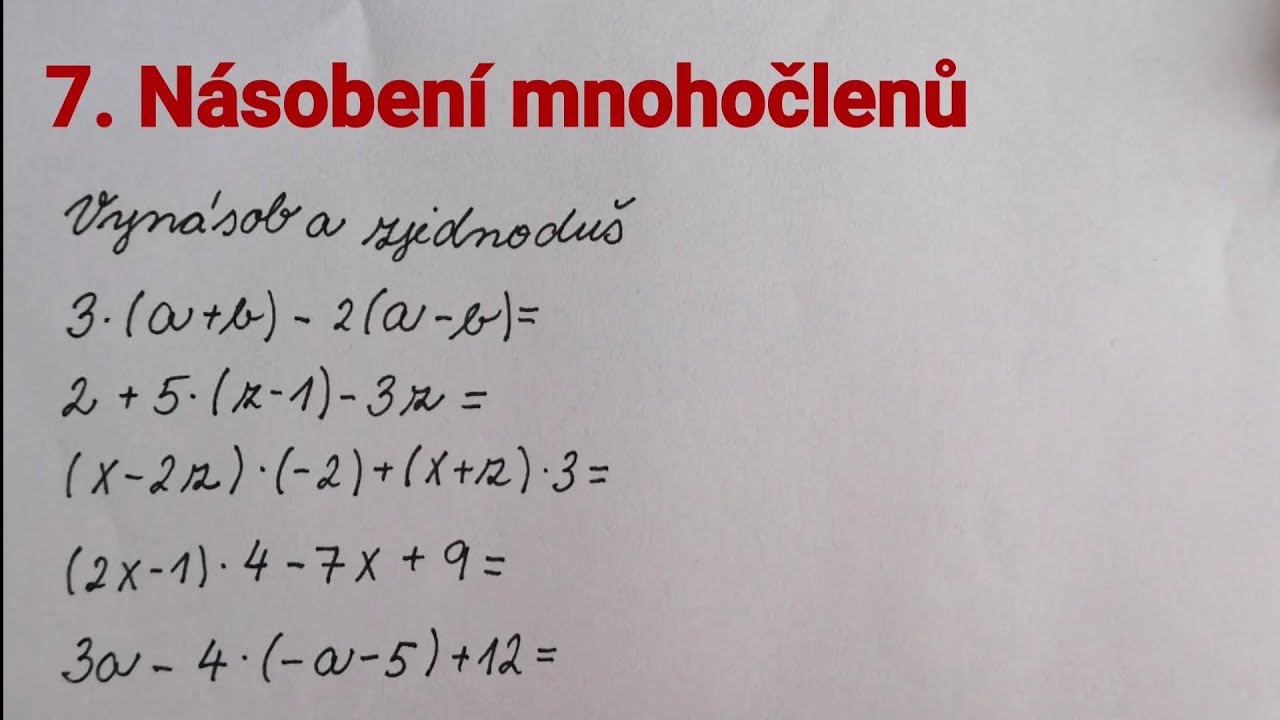
A test in LaTeX, turned straight into a skill (see below). Photos of model exercises are enough as a template:
1 2 3 4 5 | |
Connectors and MCP
MCP (Model Context Protocol) is an open standard through which an AI agent
connects to other services and programs. Each service offers the agent a set
of tools (“read e-mails”, “create a calendar event”, …) and the agent then
uses them just like its built-in tools. In Claude these integrations are called
connectors. They are configured at claude.ai,
in Claude Code with the /mcp command.
Examples:
- Gmail, Google Calendar, Google Drive
- Canva, Dropbox
- Blender – the agent models in 3D
- Claude in Chrome – the agent controls your browser (clicks, fills in forms, reads pages)
Example prompt:
1 2 | |
Skills
A skill is instructions for the agent stored in a file. It is a directory
with a SKILL.md file containing a name, a short description (when to use the
skill) and detailed instructions. Optionally it can contain scripts or
templates. The agent only knows the skill descriptions; it loads the full
instructions only when it needs them. A skill can also be invoked manually as
/skill-name.
Skills are stored in ~/.claude/skills/<name>/SKILL.md (for all projects) or in .claude/skills/ inside a project. The easiest way is to let the agent
write the skill: “Turn what we have just done into a skill.”
Example: my skill for Claws Mail. Following it, the agent prepares an e-mail draft (recipient, subject, body, attachments) and I just check it and send it.
Documentation: Agent Skills.
Plugins
A plugin is a package that can contain several skills, commands, sub-agents,
hooks and MCP servers at once.
It is installed from a “marketplace” with the /plugin command.
- Caveman – the agent answers tersely in “caveman language”. It saves tokens and reading time.
- security-review – checks code for security bugs before a commit
(available in Claude Code as
/security-review).
Documentation: Plugins.
Vibe-coding and loops
Vibe-coding is a way of working where you let the agent write the whole application. You describe what you want and try out the result; you hardly look at the code. For small tools for your own use it is great. For anything other people use, the result must be reviewed.
A ten-minute video: I built an app with AI that monitors parking (Filip Oborník, AI s rozumem; in Czech).
Loops
Normally the agent stops when it thinks the work is done. Loops make it keep working until a verifiable criterion is met.
/goal <condition>– sets a goal that the agent checks before it stops. If the condition is not met, it keeps working (e.g. “all tests pass”).- LongHorizon-Harness – a framework for long tasks (even dozens of hours). Three roles: the Manager plans, the Executor carries out, the Auditor verifies. Work moves on only with a verified result.
- loop-engineering-plugin – a plugin for Claude Code. It breaks a large task down into verifiable sub-goals, iterates with checks in a clean context, detects when the work is stuck, and stores what it has learned for next time.